
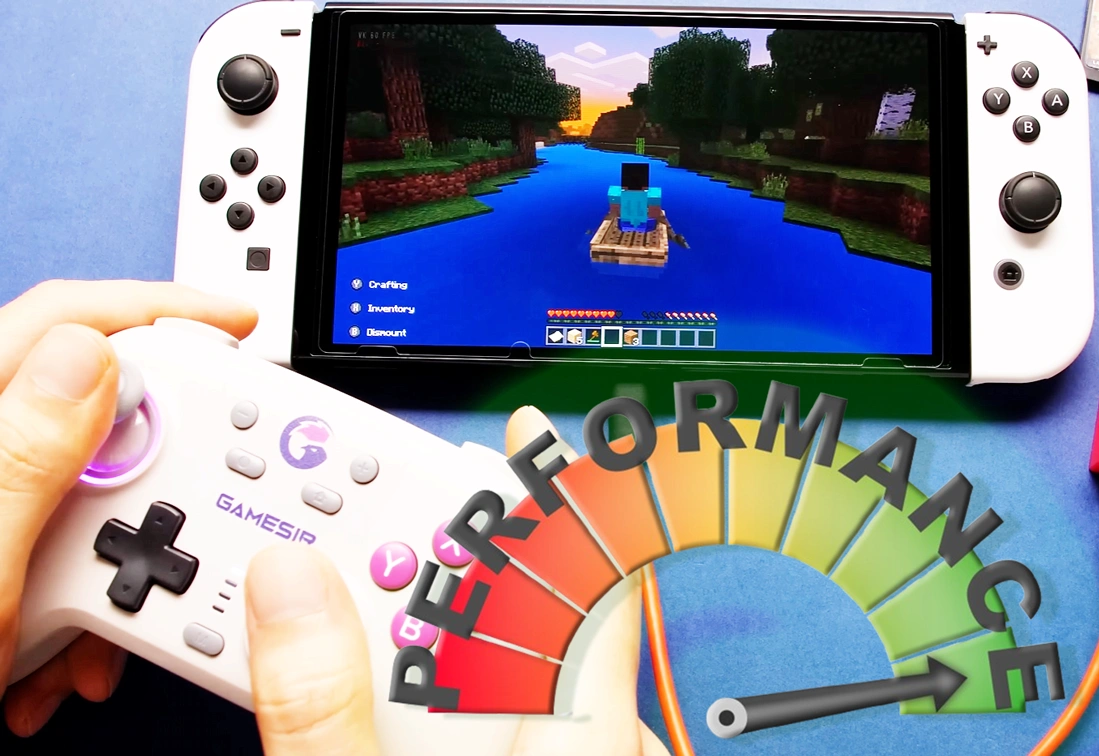
The Yuzu Emulator is powerful, but many users still experience lag, stuttering, or low FPS while playing games. These issues are usually not caused by the emulator itself, but by incorrect settings, outdated drivers, or hardware limitations.
The good news is that performance can be improved significantly with a few simple adjustments. In this guide, you’ll learn the most effective and practical ways to boost speed and stability in Yuzu.
- 1 Quick Performance Fixes at a Glance
- 2 1. Update Yuzu Emulator and Firmware
- 3 2. Enable Asynchronous Shader Compilation
- 4 3. Adjust CPU Settings for Better Performance
- 5 4. Optimize Graphics Settings
- 6 5. Update GPU Drivers
- 7 6. Close Unnecessary Background Processes
- 8 7. Use an SSD Instead of an HDD
- 9 Additional Performance Tips
- 10 Conclusion
Quick Performance Fixes at a Glance
If your games are running slowly, start with these quick optimizations. These basic fixes solve most common performance problems without needing advanced configuration.
| Performance Issue | Possible Cause | Solution |
|---|---|---|
| Low FPS | Outdated Yuzu version | Update emulator |
| Stuttering | Shader compilation | Enable async shaders |
| Slow loading | Using HDD | Switch to SSD |
| Crashes | Old GPU drivers | Update drivers |
| Lag | Background apps | Close unnecessary apps |
1. Update Yuzu Emulator and Firmware
Keeping the Yuzu Emulator updated is the first and most important step. Updates improve performance, fix bugs, and increase compatibility with newer games.
Running an outdated version can lead to crashes, missing features, or poor performance. The same applies to firmware and prod.keys—these must also be updated regularly.
How to Update:
- Open Yuzu → Help → Check for Updates
- Install the latest version
- Update firmware and prod.keys files
Keeping everything updated ensures smoother gameplay and fewer errors.
2. Enable Asynchronous Shader Compilation
Shader compilation is one of the biggest reasons for stuttering in Yuzu. When shaders are compiled during gameplay, it causes frame drops and lag spikes.
Enabling asynchronous shader compilation allows the emulator to handle shaders more efficiently in the background, significantly reducing stutter.
Steps:
- Open Yuzu → Emulation → Configure → Graphics → Advanced
- Enable:
- Asynchronous GPU Emulation
- Disk Shader Cache
- Restart Yuzu
This setting alone can greatly improve gameplay smoothness in many games.
3. Adjust CPU Settings for Better Performance
CPU configuration plays a major role in how well games run in Yuzu. Incorrect settings can cause stuttering or unstable performance.
Balancing CPU accuracy and enabling multicore processing can improve both speed and stability.
Recommended Settings:
- Set CPU Accuracy → Auto (best balance)
- Use Unsafe mode only if needed (may cause bugs)
- Enable Multicore CPU Emulation
These settings help Yuzu use your processor more efficiently.
4. Optimize Graphics Settings
Graphics settings directly impact FPS and overall performance. High settings may look better but can slow down gameplay, especially on mid-range systems.
Lowering certain options can significantly boost FPS without significantly affecting gameplay.
Best Settings:
- API:
- Vulkan (best for AMD & modern GPUs)
- OpenGL (sometimes better for NVIDIA)
- Resolution Scaling: 1x (recommended)
- Disable unnecessary visual enhancements
Finding the right balance between performance and visuals is key.
5. Update GPU Drivers
Outdated graphics drivers are a major cause of poor performance, crashes, and graphical glitches. Updated drivers improve compatibility and unlock better performance.
Always download drivers from official sources:
- NVIDIA
- AMD
- Intel
Installing the latest drivers ensures your GPU works efficiently with Yuzu.
6. Close Unnecessary Background Processes
Running too many applications in the background can consume CPU, RAM, and GPU resources. This directly affects emulator performance.
Freeing up system resources can instantly improve FPS and reduce lag.
What to Do:
- Open Task Manager (Ctrl + Shift + Esc)
- Close apps using high resources
- Disable unnecessary startup programs
Also, turning off Windows Game Mode can sometimes improve stability.
7. Use an SSD Instead of an HDD
Storage speed plays a bigger role than most users expect. Running Yuzu on an HDD can cause slow loading times and stuttering.
Switching to an SSD improves data access speed, which leads to smoother gameplay and faster loading.
Tips:
- Install Yuzu on an SSD
- Store game files on SSD
- Avoid slow external drives
This is one of the easiest ways to boost overall performance.
May you also like: Yuzu Emulator Errors & Fix Guide (Updated 2026)
Additional Performance Tips
To get even better results, follow these extra recommendations:
- Keep your system cool (avoid overheating)
- Use high-performance power mode in Windows
- Avoid running heavy software while gaming
- Restart Yuzu after changing major settings
Small optimizations can make a noticeable difference.
Conclusion
Improving performance in the Yuzu Emulator does not require advanced technical knowledge. Most issues can be fixed by updating software, adjusting settings, and optimizing your system.
By enabling asynchronous shaders, using the right graphics settings, and ensuring your drivers and emulator are up to date, you can achieve much smoother gameplay. If performance issues continue, reviewing community discussions on platforms like Reddit can also provide helpful insights based on real user experiences.